Cockpit Map Window
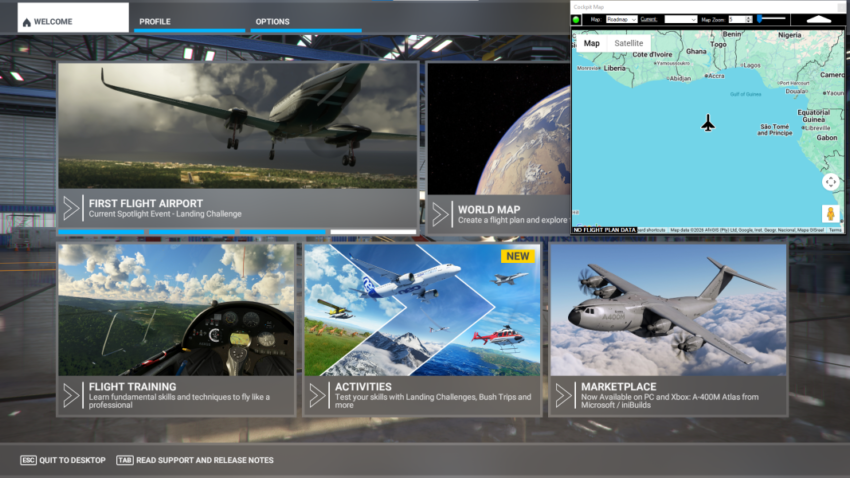
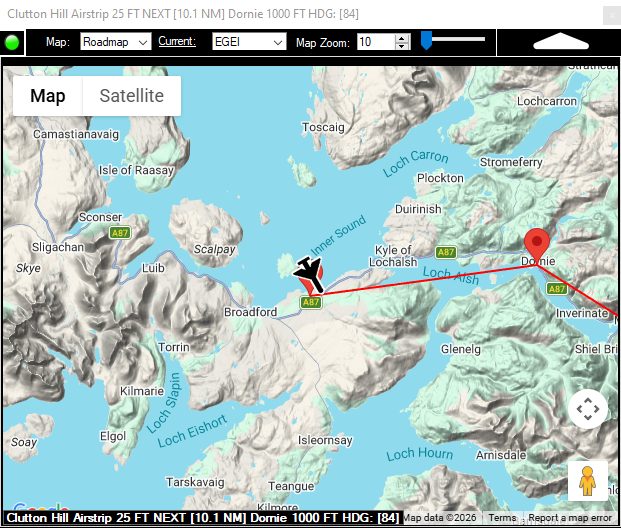
Cockpit Map will automatically open from the Simflightplan™ Main window if Microsoft Flight Simulator (MSFS) is running and no flight plan has been opened. Cockpit Map will display the aircraft at the prime meridian on the equator (Latitude: 0°, Longitude: 0°) if no flight is loaded in MSFS.
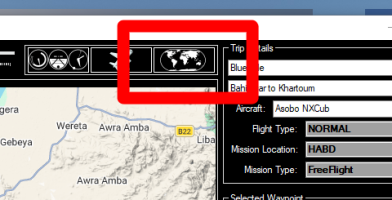
You can also click the Cockpit Map Button to open Cockpit Map from the Main Simflightplan window.
Cockpit Map can be resized and repositioned in the MSFS view and will remain visible "on top" of MSFS. Cockpit Map will retain your chosen size and position until Simflightplan is closed.
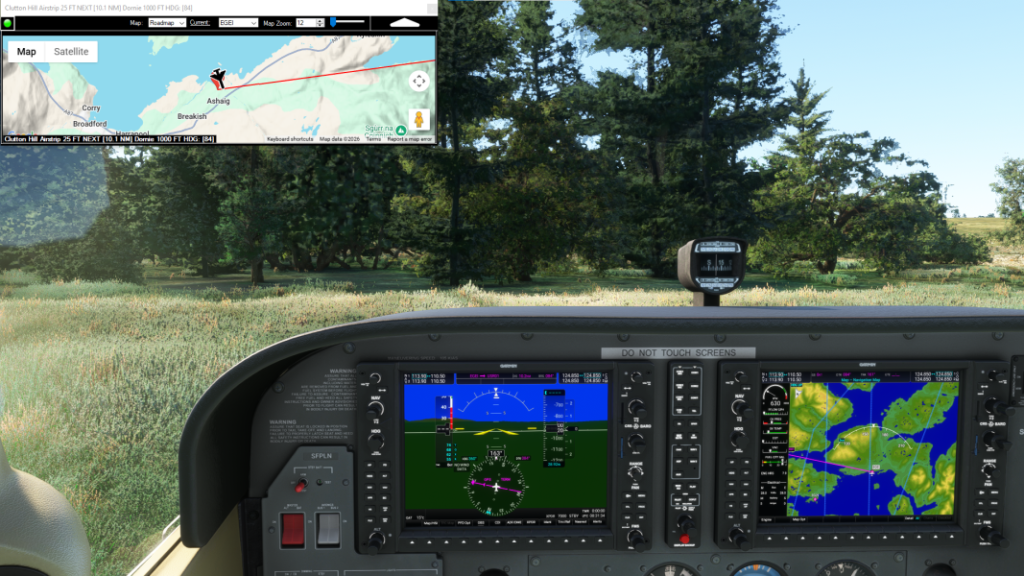
Aircraft controls (and/or MSFS menus & buttons) "behind" Cockpit Map can be manipulated with the mouse even if the Cockpit map Transparency is set to 100% (no transparency).
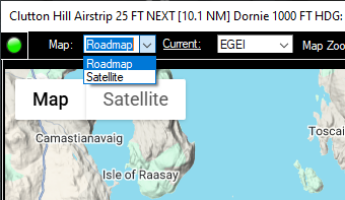
Control Bar (Left to Right):

- GPS Follow Button "Lit" in green if Cockpit Map is updating the aircraft position real-time. Click to turn GPS Follow on/off (GPS Follow will turn off automatically when interacting with the map).
- Map Drop-Down (Roadmap or Satellite) Default view Cockpit Map will return to when GPS Follow is turned on. On map controls can be used to switch map view temporarily.
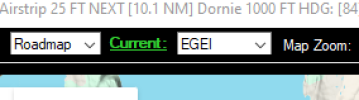
- Current Link The link will turn green when a waypoint is manually selected, otherwise it will be white when Cockpit Map is following the current (Previous) waypoint coming from the glass cockpit / MSFS.
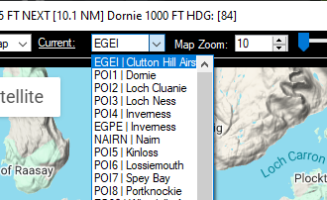
- Current Drop-Down Lists all waypoints on the loaded Flight Plan. Select a waypoint in the list to pan the map to that location and set it as the Current waypoint.
- Map Zoom Up / Down Default zoom level Cockpit Map will return to when GPS Follow is turned on. On map controls can be used to change zoom temporarily.
- Transparency Slider Changes the transparency of Cockpit Map, this level is shared by the Main Simflightplan window.
- Show / Hide Button The arrow button toggles between just the Cockpit Map Control Bar and your preferred map view / position.
Map Pane:
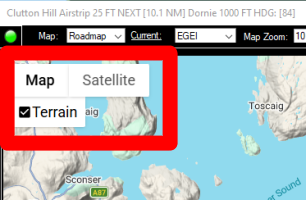
- Map / Satellite Button Select Roadmap or Satellite and toggle terrain and map labels on or off. This setting will be changed back to the values in the Control Bar (Map Type, Zoom) when GPS Follow is turned on.
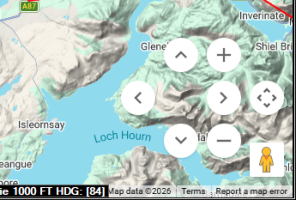
- Directional / Zoom Button The on map direction controls and zoom can be used to pan and zoom the map temporarily. The map will return to the position of the aircraft when GPS Follow is turned on. Hold the Ctrl button on the keyboard to use the mouse scroll-wheel to zoom, otherwise control of the scroll-wheel remains with MSFS.
- Aircraft Icon If MSFS is running, Cockpit Map will connnect and display the loaded aircraft in the center of the map. The nose of the aircraft will be pointed at the bearing reported by MSFS. If a flight plan is loaded in Simflightplan™, the tag for the aircraft will be the selected aircraft for the flight plan. GPS Follow is turned off while moving (or otherwise manipulating) the map, the aircraft icon will remain a the last reported position until GPS Follow is turned back on.
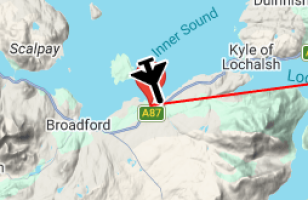
- Marker Push Pins If a flight plan is loaded in Simflightplan™, red push pins will be placed at each waypoint.
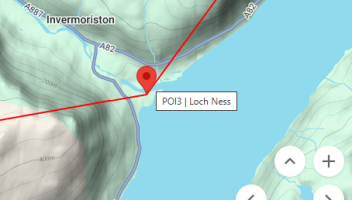
- Click the push-pin to manually set the waypoint as the Current WP. The Current link will turn green and the current (Previous) waypoint coming from the glass cockpit / MSFS is ignored. The clicked push-pin will be centered in the map.
- Hover the mouse over the push-pin to display the waypoint number (ICAO) and description for the waypoint.
- Vectors are drawn between the waypoints directly, this is not necessarily the flight path of the aircraft calculated by the glass cockpit.
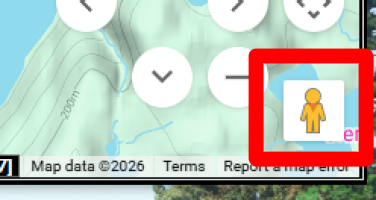
- Peg Man Button The Google Maps "Peg Man" can be dragged onto the map and any available photogrammetry will be flagged as a small blue dot on the map. Drop Peg Man on the blue dot to display the photogrammetry for that position. Click the back arrow in the caption to return to map view.
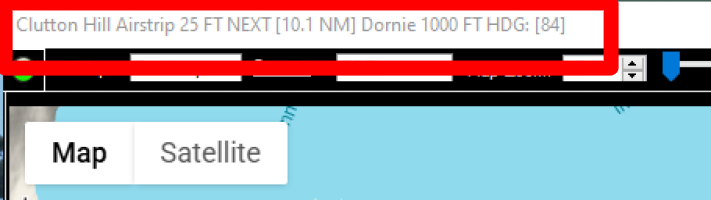
- Information Label If a flight plan is loaded in Simflightplan, in the lower-left corner of the map the Info Label will show the Current (Previous) waypoint & altitude, the Next waypoint & altitude and the heading to the next waypoint. If the Current waypoint is selected by MSFS, the heading displayed is the flight plan heading from the previous waypoint to the next waypoint. If the Current waypoint has been manually selected (Current Link in green), the heading displayed is the heading from the aircraft position to the next waypoint.
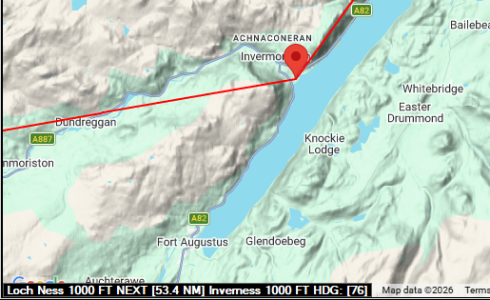
6. Cockpit Map Caption will display the same information as the on-map Info Label and will continue to update even if the map is hidden (see Show/Hide button).