
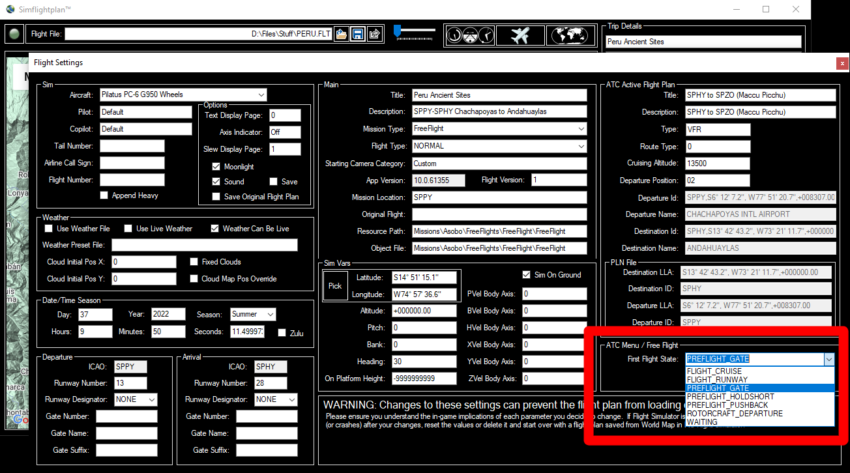
Flight Plans for Microsoft Flight Simulator (MSFS) contain a setting called First Flight State. This parameter tells MSFS the initial state of the aircraft when the flight plan loads. There are a number of settings for use in creating custom content like Landing Challenges and Discovery Flights which won't be discussed in detail here. But there are several settings that can be used in free flight flight plans to control how and where the aircraft spawns.
IMPORTANT: If a .SPB file exists in the same directory as the flight file (FlightFileName.SPB) the aircraft condition and location along with a variety of simulation conditions will be defined by the .SPB file and cannot be changed. FLIGHT CRUSE must be used to override the spawn position in the .SPB file.
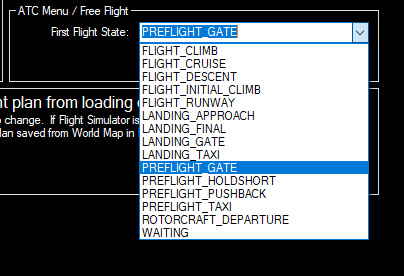
PREFLIGHT_GATE The MSFS simulation starts with the aircraft cold-and-dark at the parking spot or gate specified in the Departure Gate Number, Name and Suffix fields (see PREFLIGHT_HOLDSHORT below). The specific placement and heading of the aircraft are set using the Sim Vars Latitude, Longitude and Heading (see FLIGHT_CRUISE for picking Sim Vars position on the map).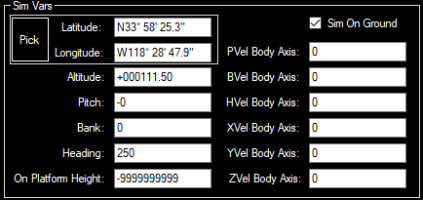
PREFLIGHT_TAXI The MSFS simulation starts with the aircraft started and idling, no runway, parking or gate number required. But if a valid parking spot and/or gate is used the aircraft spawn there, otherwise the specific placement and heading of the aircraft are set using the Sim Vars Latitude, Longitude and Heading.
PREFLIGHT_HOLDSHORT The MSFS simulation starts with the aircraft started and idling at the holdshort position for the selected runway. A Departure Runway Number (and Designator if necessary) is required to use PREFLIGHT_HOLDSHORT. The location values set in the Sim Vars section will be ignored and the predefined holdshort position for the Departure Runway Number/Designator will be used.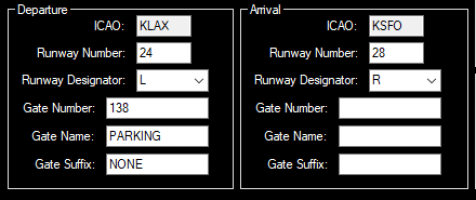
FLIGHT_RUNWAY The MSFS simulation starts with the aircraft started and idling at the selected position on the runway. Even though a Departure Runway Number (and Designator if necessary) should be entered, the aircraft will be placed at the location values set in the Sim Vars section. Typically the flaps and other aircraft controls will be set for take off, but these should be VERIFIED.
*Note: Using the runway number to set the Sim Vars Heading may not precisely match the direction of the runway due to correction for the magnetic variance as well as the real-world position of the runway.
FLIGHT_CRUISE The MSFS simulation starts with the aircraft started and moving at the position and altitude (as well as other flight parameters) specified in the Sim Vars section (see PREFLIGHT_GATE above). The Pick Button can be used to select a spawn postion on the map.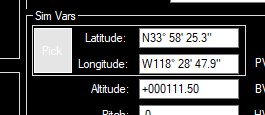
The Flight Settings form will be hidden and the map will be displayed with a cross-hairs mouse cursor. The on-map controls can be used to move and zoom the map. Pick a position on the map to return to Flight Settings.
*Note: The FLIGHT_CRUISE setting can be used to override the spawn poisition in an .SPB file (if necessary). The Sim On Ground setting can be selected when using FLIGHT_CRUISE to spawn on the ground. Once spawned, you will often have to throttle back the aircraft and apply the brakes & parking brake.