
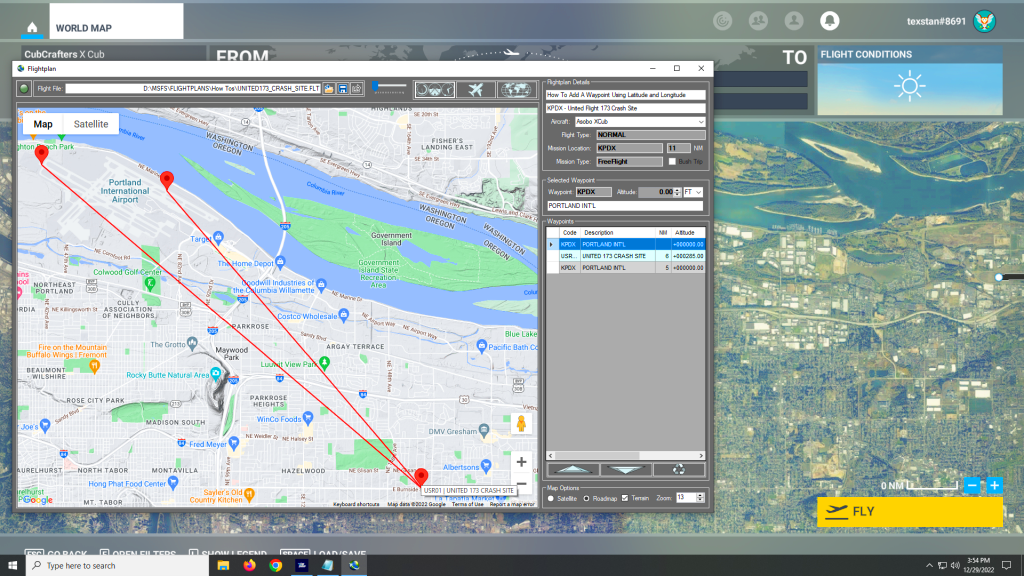
You can add a new waypoint to your flight plan using latitude and longitude, but you must format the coordinate as follows:

Which is as follows: The cardinal compass direction and degrees of latitude including the ° symbol (use Alt + 0176 on a Windows keyboard) then a space. Next are minutes with no decimal places and the ‘ (single quote) plus another space. Then add the seconds with up to 2 decimal places of precision and the ” (double quotes). Finally add a comma (and a space for readability) and the longitude using the same format as latitude.
When you click on a map, the "Add Waypoint" form opens with the coordinates of where the pin dropped already selected. But if you enter different coordinates in the proper format, Simflightplan™ will move your Pin to your manually entered coordinates and create the waypoint as normal.
Check out the How To videos on our YouTube channel for more information https://youtube.com/@simflightplan

Simflightplan™ is a Google Maps flight planning add-on for use with Microsoft Flight Simulator. Simflightplan™ can be used to create and share your own flight plans using an interactive Google Maps drag-and-drop interface complete with terrain elevations, landmarks, streetviews, etc. Click on the interactive map to drop a pin at any location on earth, plus edit your aircraft and flight plan settings before you get in the cockpit.
Download Simflightplan™ for Flight Simulator for free now! Google Maps API subscription is included free for 7 days.
Simflightplan™ is always free to use for editing and modifying flight plans, a Google Maps API subscription is required to continue using the map features. Software updates and upgrades are free for life.
Note: Each PC can be registered to only 1 user, so please make sure you are using the same PC you run Microsoft Flight Simulator 2020 on when you open Simflightplan™ for the first time.